

Every roadmap now has the same line item: “Add AI to the product.” Pilots pop up everywhere, but only a fraction ever make it into production. For most engineering leaders, the hard part isn’t building the model. It’s integrating AI into business products that already have years of logic, real user expectations, and strict uptime requirements. In a mature system, even a small AI feature can ripple through performance, data flow, and release timing.
This is the problem Aloa focuses on.
We help business leaders layer AI into an existing product and modernize their business operations without breaking what already works. We look at the current architecture, trace how data moves, and find the smallest and safest place to introduce AI. From there, we add changes in controlled steps so the product stays stable and the roadmap stays on track.
This guide walks through that approach: how to choose a realistic first AI use case, what to consider when integrating responsible AI, and how to test it safely inside a live product. That way, you actually see the benefits of AI instead of just chasing hype.
TL;DR
- Most AI projects fail to reach production; the real challenge is fitting AI into mature, fragile systems.
- You don’t rebuild. You layer AI on top of your stack, usually as a small, separate service.
- First, assess readiness: map one workflow end-to-end, check data quality on real records, and confirm who owns what.
- Pick an integration pattern that matches your architecture (simple API call, microservice, or event-driven job).
- Ship one minimal AI feature behind a feature flag, using a pre-trained model and your existing data pipeline.
- Monitor latency, failures, usage, and cost; then scale with caching, background processing, and a small “AI crew.”
Assess Your Product's AI Readiness Without Disrupting Operations
When you layer AI into an existing product, you don’t rebuild it. You add a small AI service on top of what you already run, usually as an extra API. Your core CRM, support desk, or analytics app stays the same.
The goal is to speed up your workflows and cut manual repetitive tasks using data you already collect. You can check how ready you are in about a week, with no code changes, by looking at your infrastructure, your data, and your team.
Technical Infrastructure Audit
Look at how Zendesk added AI. They kept their ticketing system and layered Zendesk AI on top to suggest replies, route tickets, and power bots, while ticket objects and flows stayed intact.
Do the same on one workflow where AI might help, like “suggest a ticket reply” or “summarize an account timeline,” and:
- Map the path: For one request, note where it enters, which service handles it, which database it touches, and what comes back.
- Find hook points: Mark places you already call another service or send a job to a worker. Those boundaries are natural spots to call an AI service. For example, a “generate PDF report” job could later also call an AI summary API.
- Set speed and failure rules: Decide what “fast enough” means (for example, sub-second for inline help, tens of seconds for reports) and check how the system behaves when a downstream service is slow or down. Your AI call should follow the same fallback pattern so the main feature still works.
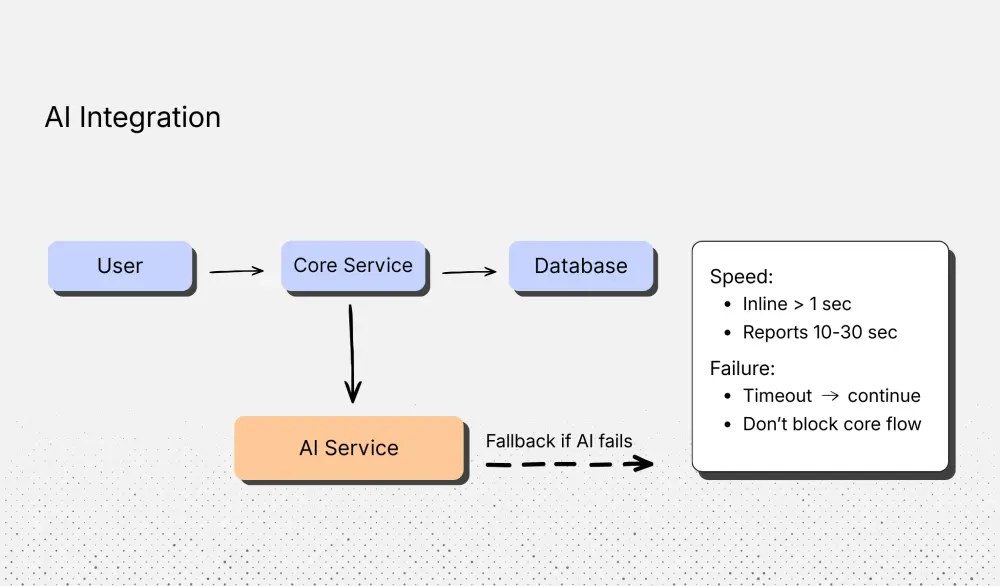
After this, you know exactly where an AI service can plug in without re-architecting the system.
Data Quality Assessment
Next, look at the data that powers that workflow. Salesforce Einstein lead scoring, for example, uses predictive analytics on past converted leads and fields like industry, company size, and activity. It works best when those fields are present and clean, because the model is looking for patterns in your historical data.
Take 50–100 recent records (tickets, deals, accounts, or reports) and check:
- Completeness: Are the key fields usually filled in?
- Consistency: Do similar fields use the same values, or a mix like “P1/High/Urgent” for priority?
- Coverage: Do you have enough examples for the pattern you care about, like churn or upsell?
Group fields into:
- Ready now
- Needs light cleanup
- Not reliable
Pick first AI ideas that rely mainly on the “Ready now” set so you don’t block on a big data cleanup.
Team Capability Mapping
Finally, look at who will own the first AI integration: usually the backend owner for the service, the frontend owner for the screen, a data or analytics person, and the product manager for that workflow.
Make a short skills list: integrating external APIs, logging and monitoring, basic AI concepts and behavior, and handling sensitive data. Ask each person if they feel strong, somewhat familiar, or new in each area, and assign tasks to match. For example:
- Backend: Add the first AI call and basic error handling
- Data: Set up logging and example capture
- PM: Define what “good enough” output looks like
You don’t need to spin up a new “AI team” for this. You just need clear ownership and a shared understanding of who does what. For many Aloa clients, this is the moment we join in: we bring AI-heavy engineering support around the existing team so they stay in control of the product, while we help them move faster and more safely on the first AI layer.
Choose Your AI Integration Strategy Based on Your Architecture
Once you know where AI could fit in your product, the next step is deciding how to actually add it. You don’t have to reinvent your system to do this. Most SaaS products end up using a small set of patterns because they’re simple, predictable, and don’t break what already works.
You can see these patterns in products you already know. Zendesk added AI right inside their ticket views. Shopify uses separate services to power things like product suggestions. Netflix updates recommendations in the background while you’re off doing something else.
Your product will likely fit one of these approaches too. The goal is to pick the one that matches how your system already works today.
API-First Integration Patterns
API-first is usually the easiest and fastest way to introduce AI into everyday business processes and routine tasks. You keep your current app as is and call a small AI service only when you need it.
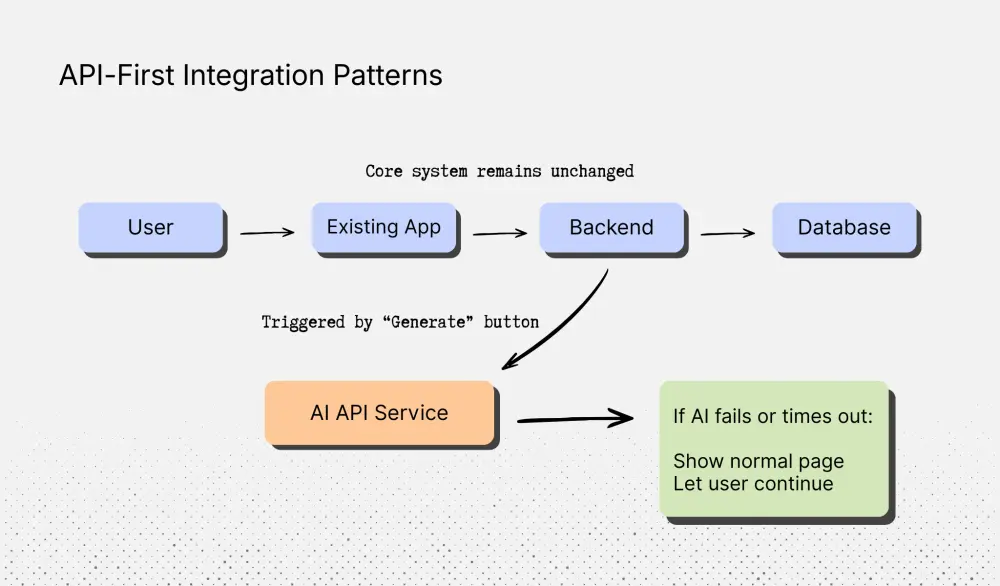
Think about how HubSpot added its AI writing assistant for content creation and email drafts. When a user clicks “Generate,” HubSpot sends a request to its AI service, gets text back, and drops that text into the editor. The contact record, pipeline views, and reports don’t change at all.
In your product, this might look like adding a “Summarize activity” button on an account page or a “Suggest reply” link in a support inbox. When the user clicks, your backend calls an AI endpoint, waits for a response, and returns the result. If the AI call fails or takes too long, you simply show the regular page and let the user continue as usual.
This pattern works best when you already call internal or external APIs and when the AI feature lives inside a specific screen or flow. It gives you a clear, contained place to start without touching core business logic.
Microservices AI Architecture
If your product already uses multiple small services, adding an AI service is usually straightforward. It becomes one more service that the others know how to talk to.
Shopify is a good mental model here. They didn’t rebuild their store engine to add AI-powered recommendations. Instead, they created a separate recommendation service that relies on large amounts of data about browsing and purchase history. When another service needs product recommendations, it sends a request to that AI service and gets back a ranked list of items.
You can do the same thing in a B2B product. For example, your “billing service” might call an “AI risk service” to get a risk score, or your “reporting service” might call an “AI summary service” to generate a short write-up. The AI logic stays in one place, and other services treat it like any other dependency.
This approach makes sense when several parts of your product might use AI over time and when you want the freedom to change or upgrade the AI service without rewriting everything else.
Event-Driven AI Implementation
Some AI work doesn’t need to happen while the user is waiting. That’s where an event-driven approach fits.
Netflix is the classic example. When you finish a show, the system records an event like “user watched this title.” Later, AI jobs process those events and update your recommendations. The next time you open the app, the new suggestions are already there. You never sat around waiting for that to happen.
In a B2B product, you might send events like "ticket closed" or "invoice sent" to a small AI service that updates an account health score, flags fraud detection risks, or helps with risk management. After “invoice sent,” AI might tag the account with a payment-risk score or draft a follow-up note for the team.
This pattern works well for weekly account summaries, churn warnings, upsell signals, and other insights that don’t need to appear instantly in the UI. Your main workflow stays fast, and the heavier AI work runs on its own schedule in the background.
Most companies start with an API-first feature because it’s simple and low-risk. Sometimes that means starting with predictable rules-based automation instead of a heavier AI-driven system.
Implement AI Features Using Minimal Viable Integration
Once you know where AI should help, your next move is not “let’s make everything AI.” Rebuilding the whole product around AI can slow everything down, raise costs, and overwhelm your team. Users get confused, support issues grow, and you lose sight of what’s actually working.
A better move is one small, low-risk feature that fits into a screen your users already know. That’s what HubSpot did with its AI email writer. They didn’t rebuild their whole marketing product. They added an extra “write this email for me” button inside the same email editor people were already using.
Same with Notion. When they launched Notion AI, they started with a private group of users and added AI into pages and docs people were already typing in, instead of shipping a brand-new tool.
That’s what “minimal viable integration” means here: keep your product steady, add one helpful AI step, and make it easy to turn on, turn off, and learn from.
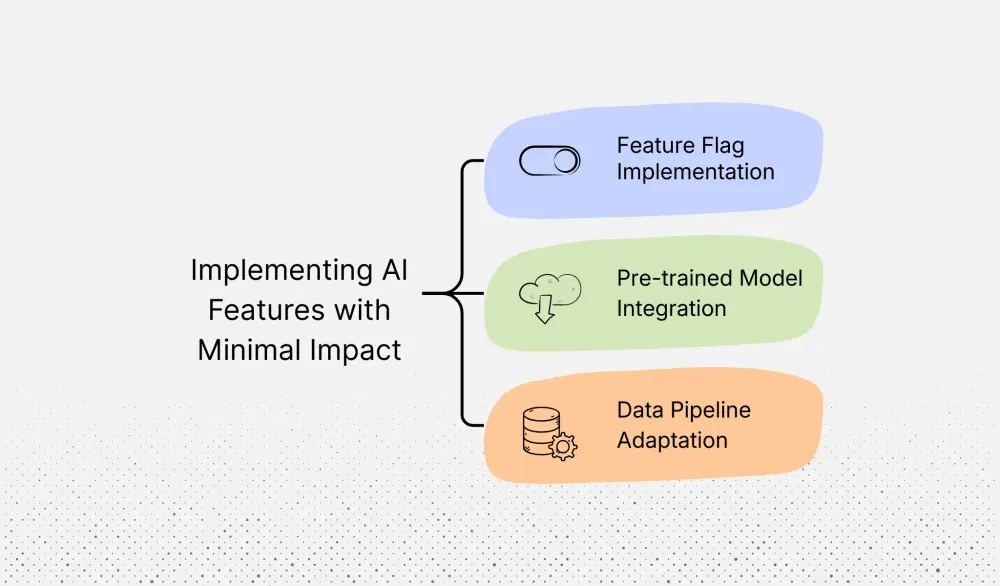
Feature Flag Implementation
Imagine you run a project tool used by customer success teams. You want to add “AI summary” for long comment threads on big accounts.
You don't switch it on for everyone on day one. You add a simple toggle in your admin area called “AI summaries.” When it’s off, nothing changes. When it’s on, users see a small “Summarize this thread” link at the top of the comments.
This is close to how Notion handled its AI rollout. They had a waitlist and early access, instead of giving AI to every workspace at once. That way, they could watch how real people used it, fix rough edges, and only then open it up more widely.
You can follow that same pattern: first, turn the toggle on only for your own company account. Let your team use it for a week or two. Then, choose a few friendly customers and flip it on for them. If something feels off (slow load times, confusing summaries, odd behavior), flip the toggle back off. The button disappears. The page goes back to normal.
The key idea: every AI feature should live behind a switch you can change in minutes, not a big launch you can’t undo.
Pre-trained Model Integration
Now picture what happens when a user actually clicks “Summarize this thread.”
Atlassian does this today in Jira Service Management. An agent opens a long ticket, clicks a “Summarize” option, and gets a short recap of all the comments so far. The agent doesn’t see any code or setup. It just feels like another button in Jira.
Your flow can be just as simple. When a user clicks “Summarize,” your system takes the text from that task and sends it to a trusted AI service over the internet (for example, the same kind of service HubSpot uses for its AI emails). You ask the service: “Give me a three-sentence summary in plain, natural language.” It sends the summary back. You show it right under the comments.
If the AI service is slow or not working, don’t block the page. Show the normal comments and a small line like “Summary not available right now.” The user can still do their job the way they always have.
You’re not training your own model at this point. You’re borrowing a strong, ready-made one to see if this one feature actually saves your users time.
Data Pipeline Adaptation
Last piece: what do you save from this feature, and where does it go?
Look at Intercom’s Fin AI bot. Fin doesn’t live in a separate “AI app.” It plugs into the same customer support tools teams already use, and it works with the company’s existing help center articles, tickets, and reports.
You can do the same thing. In your project tool, don’t invent a new “AI tasks” table. Keep using the same task record, and add a couple of new fields like “AI summary text” and “Did the user edit the summary?”
Those task records already flow into your warehouse and dashboards. Now your data team can look at questions like “Do tasks with AI summaries close faster?” without touching any old reports.
By adding AI data on top of what you already store (instead of rebuilding your data setup), you keep leaders’ reports stable and still get clear proof of whether this first AI layer is worth growing.
Test and Monitor AI Performance Without Compromising Core Systems
Turning on an AI feature is only half the job. The other half is making sure it behaves, every day, without hurting the rest of your product.
Think about how tools like Slack handle this. Slack’s admin dashboard now has an AI section that shows how often people use AI to write messages, click “summarize,” or use AI search. It helps teams spot which AI features are actually used and where things might be slipping.
You don’t need anything that fancy to start. But you do need a simple way to watch your AI, catch problems early, and turn it off quickly if needed.
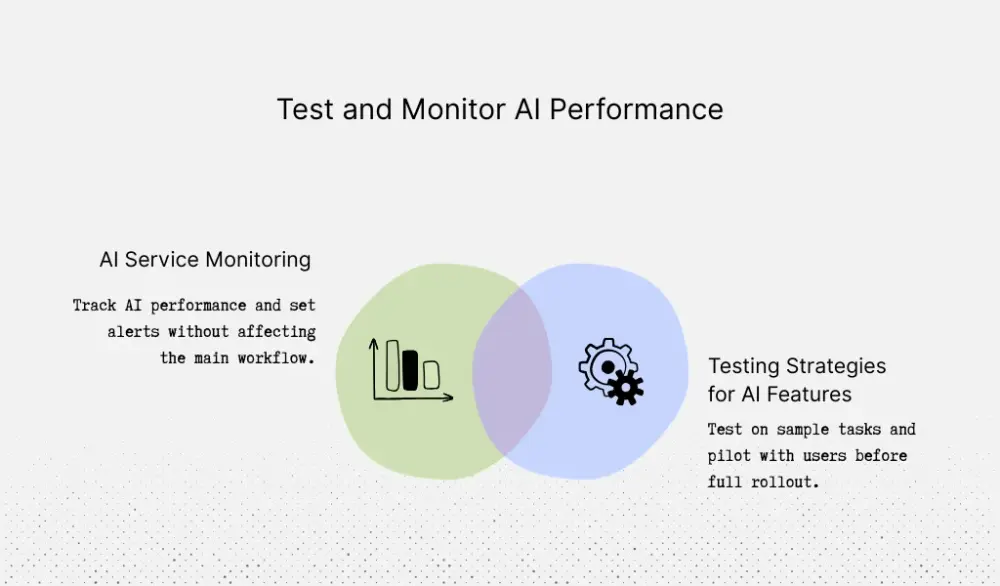
AI Service Monitoring
Imagine you run a help desk tool and you’ve just added “AI reply suggestions” for agents. You want that feature to feel like Zendesk’s Answer Bot, which has dashboards showing how many questions the bot solves and when it passes issues to a human.
In your case, each time the AI suggests a reply, record a few things: did it succeed or fail, how long it took, and what the agent did with it. Did they send it as-is, edit it, or throw it away? Send those numbers into the same monitoring tool you already use for errors and uptime.
After a week or two, you’ll see what “normal” looks like. Maybe the AI usually answers in under two seconds, fails less than 1% of the time, and agents keep the draft about half the time. That becomes your normal pattern.
From there, set a few alerts. If failures suddenly double, or responses get much slower, your on-call team gets a ping. If that happens, you can flip off the AI feature flag. Your main ticket flow keeps working. The only thing users lose is the extra AI helper.
Testing Strategies for AI Features
Good monitoring protects you after launch. Good testing protects you before launch.
Here, you can borrow a page from ServiceNow. Their Now Assist Analytics dashboards help teams see which AI “skills” people use, how well they work, and where they fail.
In your product, start with a simple dry run. Take 50 to 100 past tickets, chats, or tasks. Run your AI feature on them. Ask a few power users to score each result as “good,” “okay,” or “wrong.” This gives you a clear hit rate and actionable insights before any real customer sees it.
Then push on the weird stuff: very long messages, almost empty messages, mixed languages, heavy internal jargon. You want the AI to fail in a safe way on these, with answers like “I’m not sure” or “I can’t help with this,” instead of guessing.
Finally, run a short pilot with a small set of customers. Watch how often they use the feature and whether they stick with it after the first week. If usage and feedback look healthy, you can widen rollout. If not, you still have your core system running smoothly while you improve the AI layer.
Scale AI Capabilities While Maintaining System Stability
By this point, you’ve shipped one or two small AI features and you’re watching them closely. They’re helping, they’re stable, and your users are asking, “Can we use this in more places?”
This is where things can tip from “helpful” to “chaotic” if you’re not careful. The goal now is to grow AI in your product the same way you grow any other feature: step by step, without slowing the app down, blowing up costs, or hurting the customer experience.
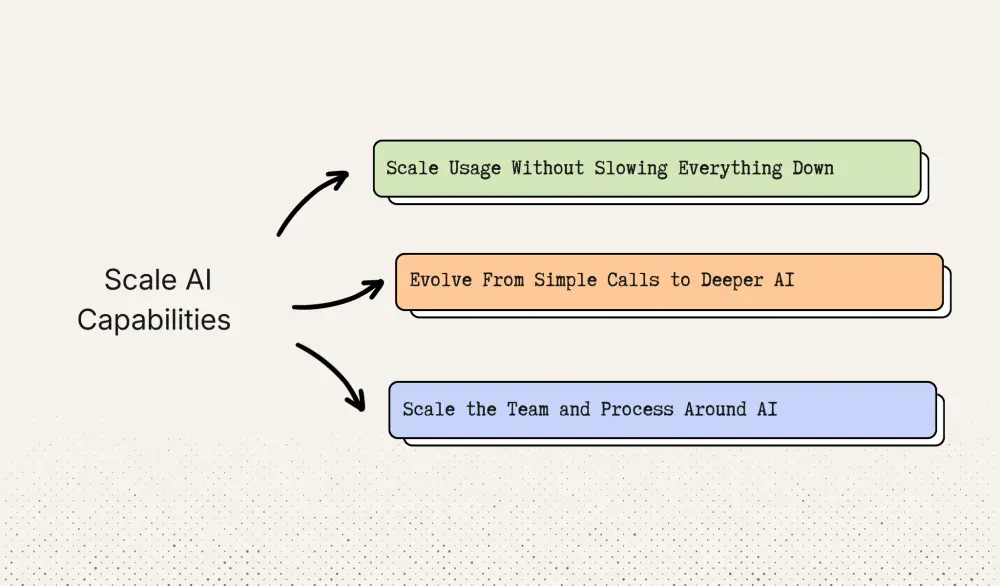
Scale Usage Without Slowing Everything Down
Imagine your “AI summary” feature is a hit. At first, only customer success uses it. Then sales wants it. Then support. Soon, everyone is clicking that button.
If you keep calling the AI service fresh every single time, three things can happen: pages get slower, your AI provider starts throttling you, and your bill jumps.
A simple way to stay ahead of this is to reuse work where you can. If five people open the same big account today, you don’t need five fresh summaries. You can store the first summary and show that to the next four people, unless the record has changed.
You can also move some work to “quiet hours.” For example, you might pre-create summaries or risk scores overnight so users don’t have to wait during the workday, and you get real cost savings on process automation. Keep watching cost per feature and track concrete AI ROI metrics for each feature so you can spot when one team is spraying AI calls everywhere and set some limits.
Evolve From Simple Calls to Deeper AI
Early on, your AI feature is usually a single “ask a question, get an answer” call to a provider. Over time, you may want AI to do heavier jobs: scan all open tickets every hour, keep an eye on live chats, or help with routing in real time.
Instead of piling that work onto your main app, peel it off into a small background service that handles the heavy lifting. It gathers the data, talks to the AI provider, and writes results back into the same records your product already uses. Users still see the same screens; they just start to see smarter suggestions.
Later, if your volume is high or your data is sensitive, you might decide to run a private model in your own cloud or inside your own network. At this stage, many companies bring in a specialist partner like Aloa, whose team spends all day building custom AI apps and knows how to keep healthcare, finance, or other regulated systems stable while the AI side grows.
Scale the Team and Process Around AI
As AI spreads through your product, the work around it changes too. At the start, one engineer and one product manager can handle everything. A year later, you might have AI helping in support, analytics, onboarding, and more.
A simple way to stay organized is to form a small “AI crew” that owns the shared pieces: prompts, safety rules, and quality checks. Then each product area has someone who knows how to plug those pieces into their part of the app.
You back this up with a few light habits: a regular review of AI metrics, a clear way for users to report bad outputs, and a simple playbook for when to pause an AI feature. That way, AI grows from a cool experiment into a steady part of your product that gives you a real competitive advantage instead of just keeping up with market trends.
Key Takeaways
A steady, step-by-step approach to AI isn’t just safer; it sets you up to win long-term. Starting with small, focused AI features lets you get real results without putting your core product at risk. You learn what actually helps your users, improve quickly, and avoid the chaos of a big rebuild.
Over time, those small wins add up. They serve as the foundation for more advanced AI across your product, without slowing your app, burning out your team, or causing unexpected costs.
If you’re ready to layer AI into an existing product, do it the same way: narrow, safe, and tied to a real problem your users deal with every day. Test it, watch the numbers, and expand only when the value is clear. This keeps your system stable while still helping you move fast.
And if you want a partner who’s done this many times, especially in healthcare, existing product enhancements, and custom AI apps, Aloa can help. Our team builds production-ready AI features, HIPAA-compliant tools, and full AI agents that plug cleanly into the systems you already rely on.
Reach out to us to get started.
FAQs
Can I add AI to my existing product without a complete rebuild?
Yes. Even big companies like HubSpot, Intercom, and Zendesk add AI in a way that improves specific business operations, not by rebuilding their whole product. They plug AI into focused workflows, like drafting replies or summarizing tickets, where it clearly saves time and is easy to measure. The same approach works for smaller teams: start with one workflow your users already rely on, add a simple AI action there, and only expand once you see real results.
If your product has places where users type, review information, or make decisions, you can usually drop an AI button or helper into that flow without touching the rest of the system.
How do I know if my existing system is ready for AI integration?
If your system can do these two things, you’re ready:
- Pull the text or data from the workflow (for example, a ticket thread, patient intake form, or project description).
- Store a small output (like a summary, suggestion, or score).
Most mid-sized B2B tools already meet this bar. If you can add a new field and make a simple API call, you can ship your first AI feature without major architecture work.
What’s the typical timeline and cost for adding AI to an existing product?
Most teams ship a first AI feature in 4–8 weeks and start seeing operational efficiency and cost savings soon after. That lines up with Aloa’s Proof of Concept tier: a 6–8 week build in the $20K–$30K range that delivers a working AI prototype inside your product flow.
For larger features that need reliability, compliance, or mobile support, Aloa’s Production Ready builds run 3–4 months in the $50K–$150K range. This includes integration with your existing system, tuning the AI to your use case, performance hardening, and launch support.
What are the biggest risks of integrating AI into existing products, and how can I mitigate them?
The major risks are:
- Bad or misleading AI outputs that confuse users
- Slow load times when the model takes too long
- Unexpected API bills from high-volume usage
You can avoid these by gating AI behind a feature flag, running it only when a user clicks (not automatically), setting timeouts, and monitoring usage and cost from day one.
When should I partner with an external AI development team versus building in-house?
Partnering makes sense when this is your first serious AI push, and you want to get it right the first time, without risking human error in critical business processes. Or when you’re working in regulated spaces like healthcare or finance.
Aloa’s Existing Product Enhancements and Workflow Automation services are designed exactly for this. We plug AI into your current product without breaking anything, build custom AI agents, and handle the underlying architecture, validation, and compliance work your team may not have time for.